
You map out your 2026 plan with energy and optimism… and then January hits.
Suddenly, the targets blur, priorities shift, and the plan that once felt sharp becomes a vague list buried in a folder. The gap isn’t strategy — it’s execution.
This guide is built for small-business owners who want to actually operate from their plan, not revisit it during mid-year panic.
Airtable gives you the perfect balance of structure and flexibility — if you build it right.
By the end, you’ll have a complete dashboard that transforms your 2026 goals into weekly, trackable actions you can run your business from.
Stop losing weeks to scattered tools and finally run your yearly plan from one clear, predictable system.
Most businesses create a solid 2026 plan, but nothing in their daily workflow actually operates from it — and that’s where execution breaks down.
Annual goals sit in documents while weekly work lives elsewhere, so strategy and action never connect.
Teams rely on tasks instead of measurable leading indicators, making progress impossible to evaluate in real time.
Owners only discover gaps at the end of the month, when it’s too late to correct course.
Section 1 — What This System Will Do
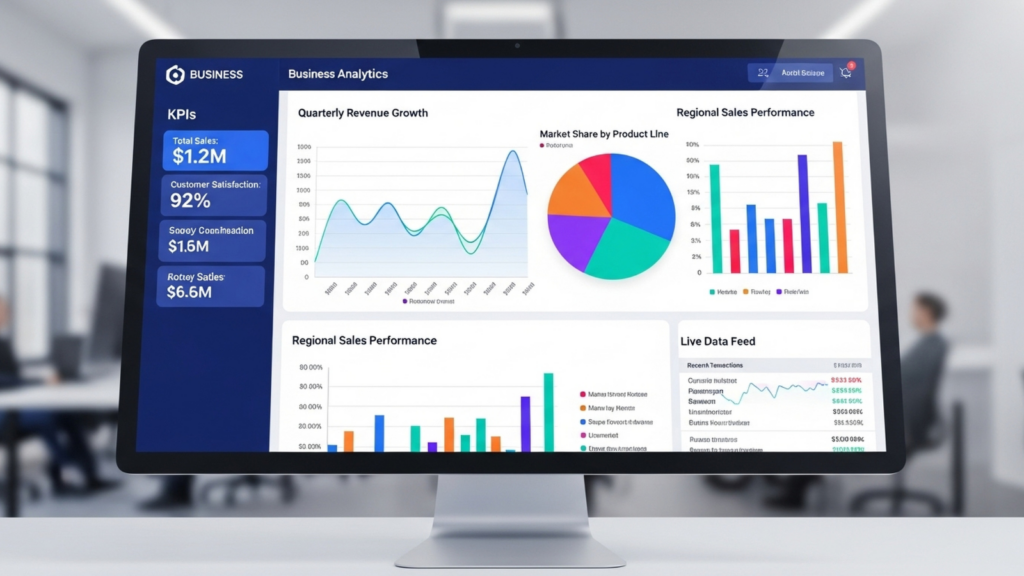
This Airtable dashboard becomes your control centre for 2026. It links your annual goals, quarterly priorities, key metrics, and weekly tasks into one unified view.
You’ll gain:
- A clear line of sight from yearly goals → weekly actions.
- Automated progress tracking against targets.
- A simple dashboard showing what’s on track, at risk, or off course.
- A predictable operating rhythm so your team knows exactly what matters each week.
Example:
If your 2026 goal is to increase revenue by 20%, the system breaks that into quarterly targets, then into weekly pipeline actions like outreach, proposals, and follow-ups — each tied to a dashboard indicator that shows whether you’re pacing toward the goal.
Want more insights like this?
Join our newsletter for exclusive tips, strategies, and updates straight to your inbox!
Section 2 — Step-by-Step Build
Step 1 — Create Your Base Structure
What to do + why:
Start with three core tables: Annual Goals, Quarterly Priorities, Weekly Actions. This creates the hierarchy needed to link strategy to execution.
Where to click:
In Airtable → “Add base” → “Start from scratch”.
Create tables with these names.
Example:
Annual Goal: “Grow revenue by 20%.”
Quarterly Priority (Q1): “Increase inbound leads by 15%.”
Weekly Action: “Publish one LinkedIn post + send 10 outreach messages.”
Optional AI boost:
Use Airtable’s AI Assist to convert high-level goals into structured KPIs and quarterly priorities.
Step 2 — Build the Annual Goals Table
What to do + why:
Define what success looks like. These become the anchor for all downstream tasks.
Where to click:
Add fields: Goal Name (Single line), Category (Single select), Target Metric (Number), Target Value, Owner, Status.
Example:
Category: Marketing
Target Metric: Lead Volume
Target Value: 450 new leads
Optional AI boost:
Ask AI Assist: “Generate SMART targets for each of these goals based on industry benchmarks.”
Step 3 — Build the Quarterly Priorities Table
What to do + why:
Quarterly priorities translate ambition into strategic focus areas.
Where to click:
Add fields: Priority Name, Quarter (Single select), Linked Annual Goal (Linked record), Success Metric, Priority Status.
Example:
Priority: “Improve website conversion by 8%.”
Linked Goal: “Grow revenue by 20%.”
Optional AI boost:
Use AI to generate priority-level KPIs and milestones.
Step 4 — Build the Weekly Actions Table
What to do + why:
Weekly actions turn strategy into behaviour. This is the heart of your execution system.
Where to click:
Add fields: Action Name, Linked Quarterly Priority (Linked record), Owner, Due Week (Date), Effort (Single select), Status, Impact Score (1–5), Completed? (Checkbox).
Example:
Action: “Set up lead magnet A/B test.”
Effort: Medium
Impact: 4
Due Week: Jan 15
Optional AI boost:
Use a prompt: “Generate 12 weekly actions that support this quarterly priority.”
Step 5 — Create Your Dashboard View
What to do + why:
Dashboards turn data into decisions.
Where to click:
Go to “Interfaces” → “Create new interface” → “Dashboard”.
Add charts, summary blocks, and lists.
What to include:
Goal progress gauge
Weekly action completion bar
Priority status heatmap
At-risk objectives indicator (Filter: status ≠ on track)
Example:
A weekly bar chart showing “% of actions completed vs. expected completion rate.”
Optional AI boost:
Ask AI Assist to summarise your status weekly: “Summarise progress and highlight risks for the week of Feb 10.”
Step 6 — Automate Reminder & Status Updates
What to do + why:
Automations keep the rhythm running without manual effort.
Where to click:
Automations → “Create automation” → “When record matches conditions”.
Example:
Trigger: Weekly Action → “Due this week & not completed”.
Action: Send Slack/Email reminder.
Optional AI boost:
Add an AI step that rewrites reminders in concise, actionable language for your team.

Section 3 — Key Metrics or Elements to Track
% of Weekly Actions Completed: Reveals execution consistency.
Quarterly Priority Status: Shows if strategy is converting into momentum.
Goal Progress vs. Target: Keeps attention on outcomes, not activity.
Lead Indicators (inputs): Calls made, content shipped, meetings booked.
Lag Indicators (results): Revenue, leads, close rate.
Each metric shows whether behaviour is aligned with outcomes — the most important discipline in small-business growth.
Section 4 — Common Mistakes to Avoid
Filling the base with too many fields: Track only what drives decisions.
Creating tasks without linking them to priorities/goals: Causes drift.
Overcomplicating automations: Start simple and mature over time.
Updating status manually instead of using automation: Leads to stale data.
Skipping weekly reviews: The system only works if it’s used rhythmically.
Section 5 — How to Use This System Daily, Weekly, Monthly
Daily
Check the Weekly Actions view.
Complete or update tasks in real time.
Review priority indicators if anything feels off.
Weekly
Run a 10-minute review: what’s done, what’s stuck, what needs reassigning.
Update priority statuses via the dashboard.
Let AI Assist generate a one-paragraph performance summary.
Monthly
Review goal progress vs. targets.
Adjust priorities or targets based on insights.
Archive completed priorities and reset weekly actions for the next cycle.
Section 6 — Optional Add-On Automations
Automatic task generation: Every Monday, create weekly actions tied to ongoing priorities.
Slack digest: Send a summary of progress and risks to your team.
Predictive insights: AI identifies which priorities are likely to fall behind.
Pipeline sync: Pull CRM data into Airtable to automatically update revenue metrics.
Time-blocking integration: Send weekly actions directly to your calendar.
Summary / Pro Tips
Anchor everything to annual goals — don’t let weekly activity drift.
Use linked records to maintain strategic hierarchy.
Automate simple actions so humans can focus on decisions.
Keep dashboards minimal: only display metrics that change behaviour.
Run a weekly review without fail — it’s the engine of consistency.
Conclusion
You now have a system that bridges the gap between your 2026 vision and the week-to-week work that makes it real.
Instead of operating from memory or scattered tools, you control your business from a unified, measurable dashboard.
Build it, use it daily, and watch your long-term goals become predictable outcomes.
Don’t miss a beat in your business growth journey!
Join Pulse and stay ahead with expert tips and actionable advice every month.
Subscribe to Pulse Today
FAQs
Q1: How does an Airtable dashboard help me actually execute my 2026 plan?
A1: An Airtable dashboard translates big annual goals into weekly behaviours. Instead of reviewing your plan once a quarter, you operate from a real-time system that shows what’s on track, what’s lagging, and what needs attention each week.
Q2: Do I need advanced Airtable skills to build this system?
A2: No — the base uses fundamental Airtable features: linked records, views, and simple dashboards. Optional automations add efficiency but aren’t required for the core workflow.
Q3: Can I use this dashboard with my team?
A3: Yes. Airtable’s shared views, permissions, and status fields make it easy for team members to update tasks and for owners to get a clear snapshot of progress.
Q4: What’s the best way to break my 2026 annual goals into weekly actions?
A4: Start with quarterly priorities, then define the weekly behaviours that reliably move those priorities forward. Use linked records so every action traces back to a higher-level objective.
Q5: How often should I update the dashboard?
A5: Daily updates keep tasks accurate. A weekly review ensures priorities stay aligned with the plan. Monthly reviews evaluate whether performance matches targets and whether priorities need adjusting.
Q6: What metrics should I track in my Airtable dashboard?
A6: The most important metrics include weekly action completion, progress toward quarterly priorities, lead indicators (inputs), and lag indicators (results). These reveal how consistently you’re executing and whether you’re pacing toward your 2026 outcomes.
Q7: Can Airtable automate reminders and status updates?
A7: Yes. Automations can send reminders, update statuses, generate weekly summaries, and create recurring tasks. These features keep your system reliable without requiring manual oversight.
Other Articles
The 2026 AI-Driven Planning Framework to Build a Business That Runs Itself
Why Most Year-End Reviews Fail — and How to Run an AI Audit That Actually Moves You Forward
How to Close More Clients Before Year-End Without Discounting Now